In this article, I will be covering how to set up the Pydev plugin in Eclipse. Pydev is the Python plugin for Eclipse. It helps you to write Python code using Eclipse.
Step 1 - Download Python
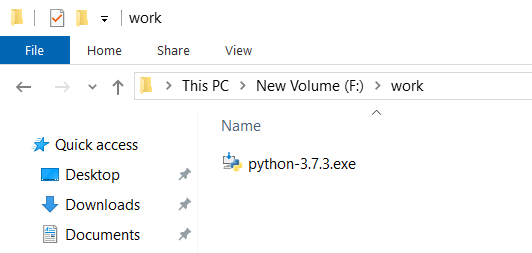
Download the latest version of Python from https://www.python.org/downloads/ as per your operating system. You should get a file as follows:
Step 2 - Install Python
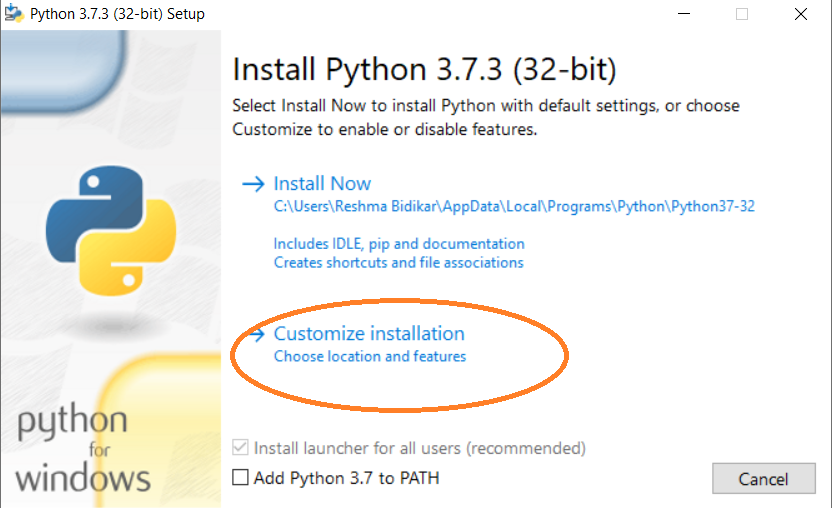
- Double-click the downloaded executable file (file with .exe extension). Click Customize Installation
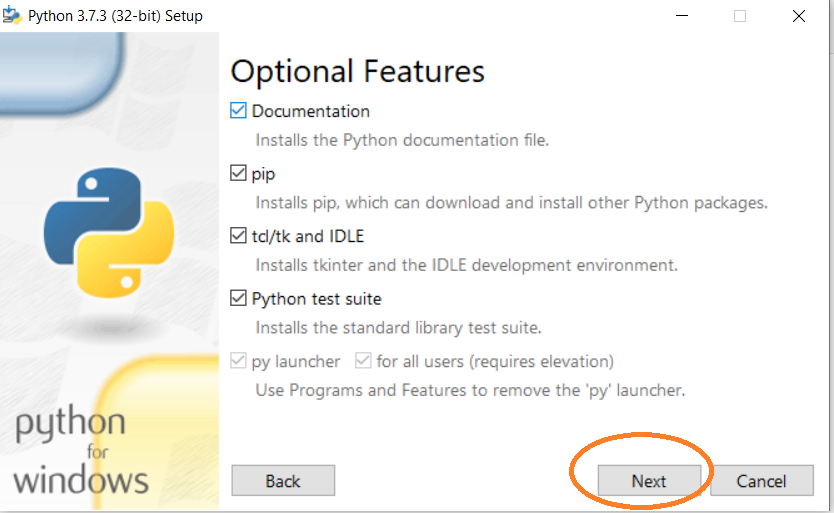
- This will show the following screen. Click next:
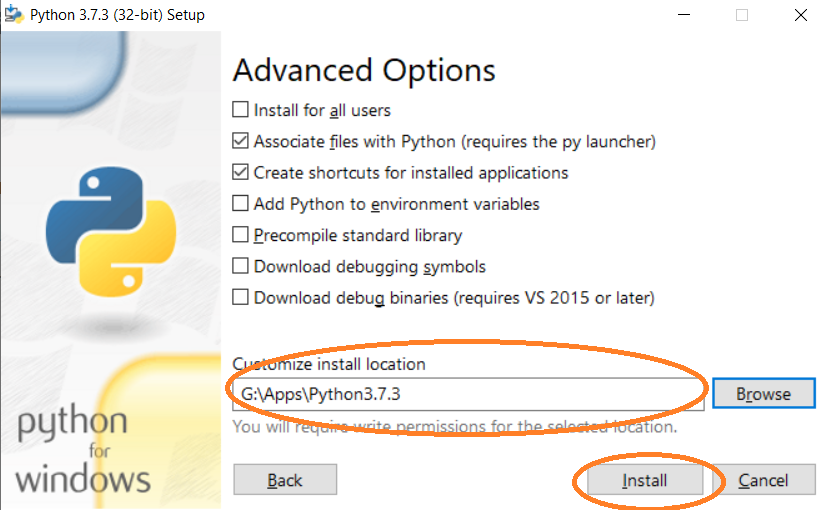
- This will show the following screen. Choose the appropriate path for installation. Click Install
- Installation process will start as follows:
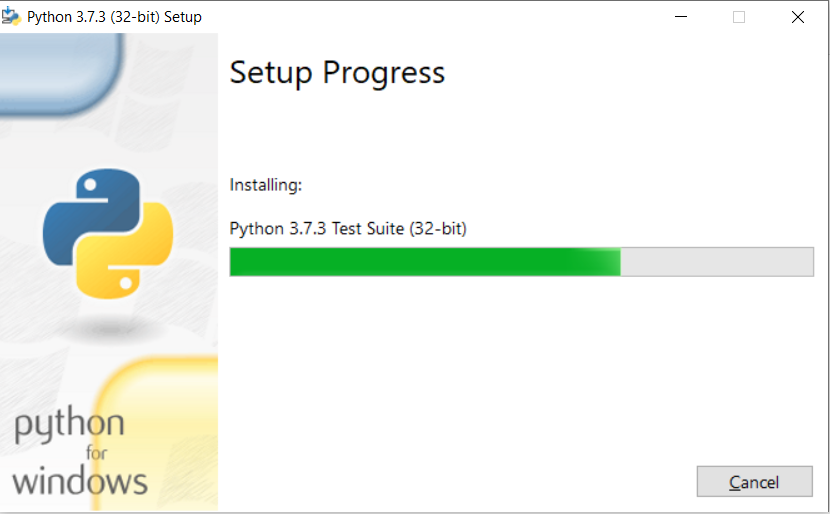
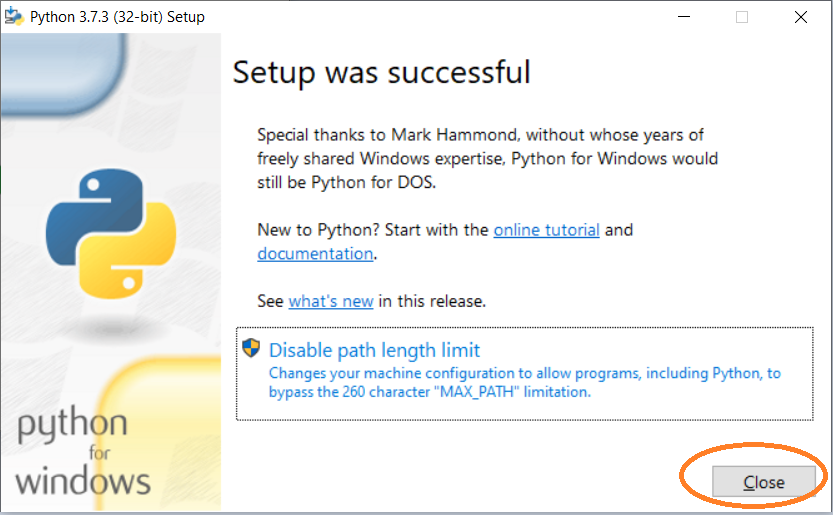
- The following screen will be displayed once the installation is complete. Click Close
Step 3 - Configure Pydev
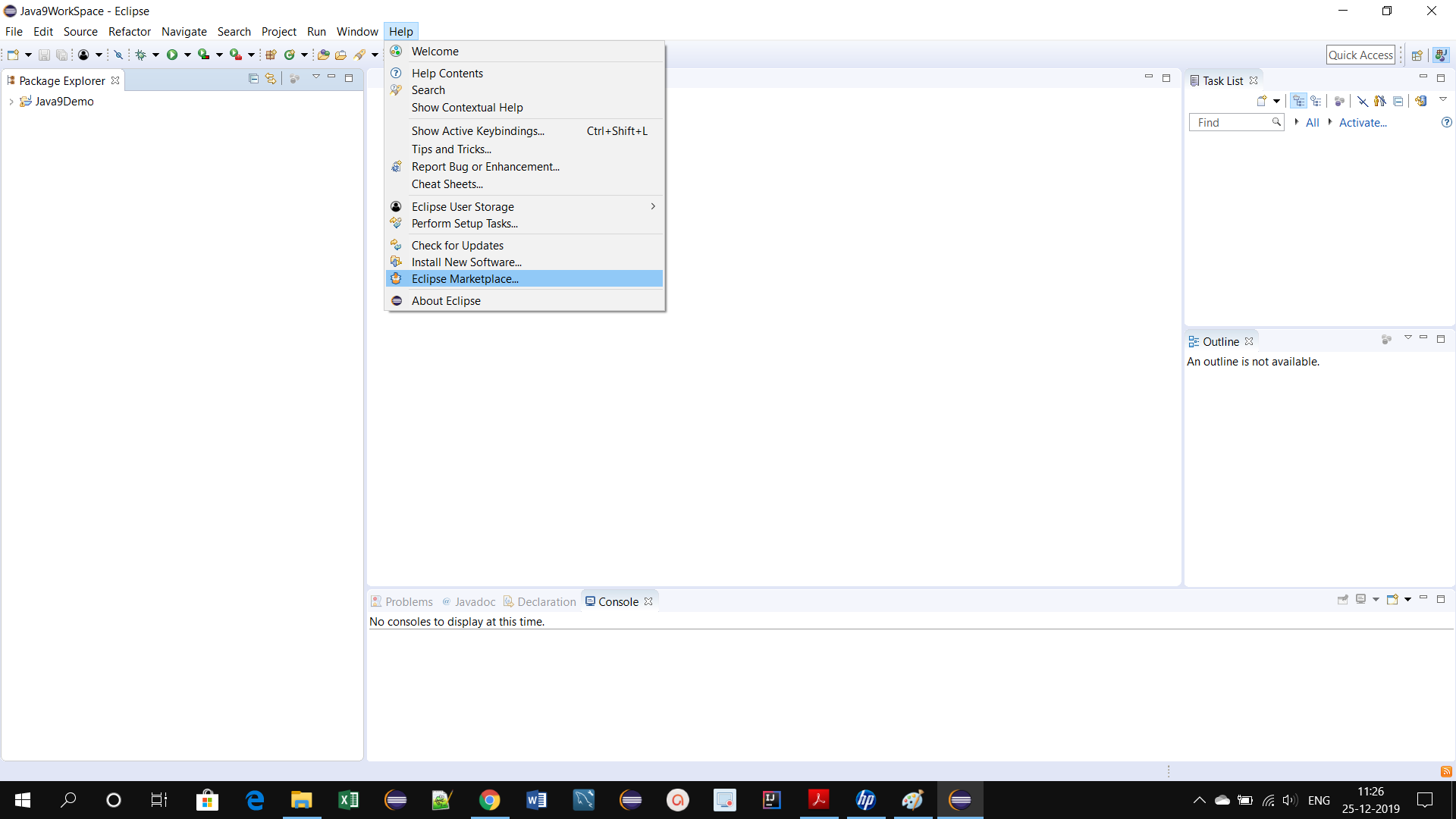
Open Eclipse. Click on Help -> Eclipse MarketPlace.
This will display the following screen:
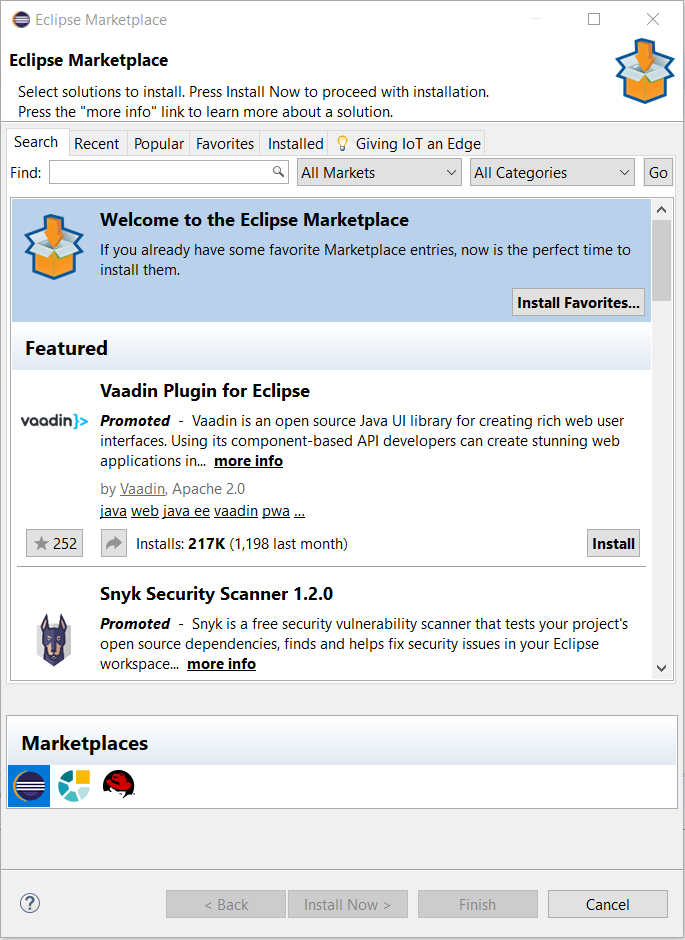
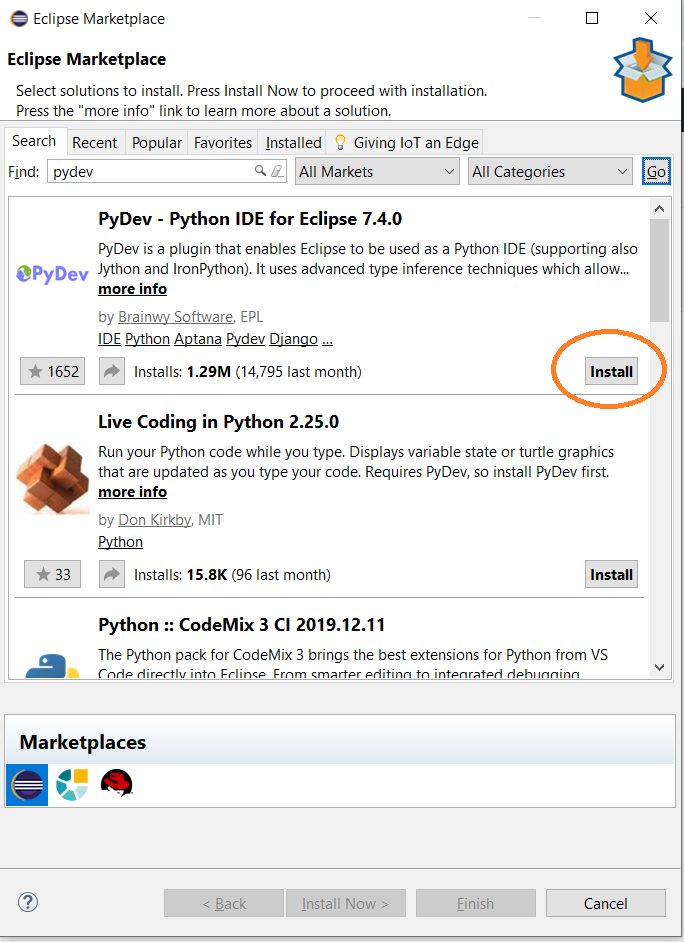
Type Pydev in the Search box & click on Go:
This will display the following. Click the install button next to Pydev:
This will display the following. Click the confirm button:
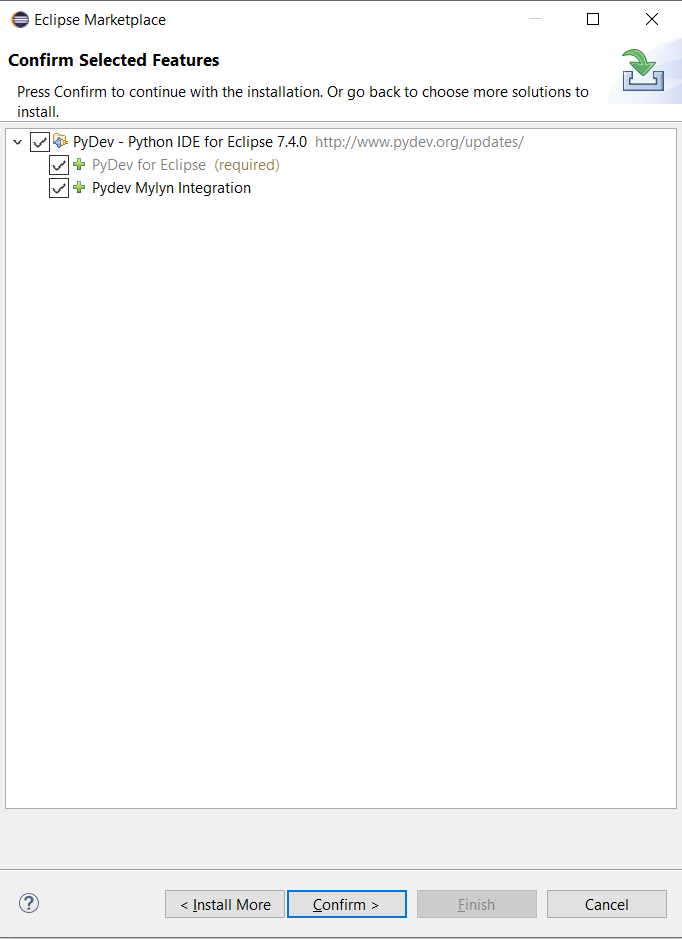
This will display the following:
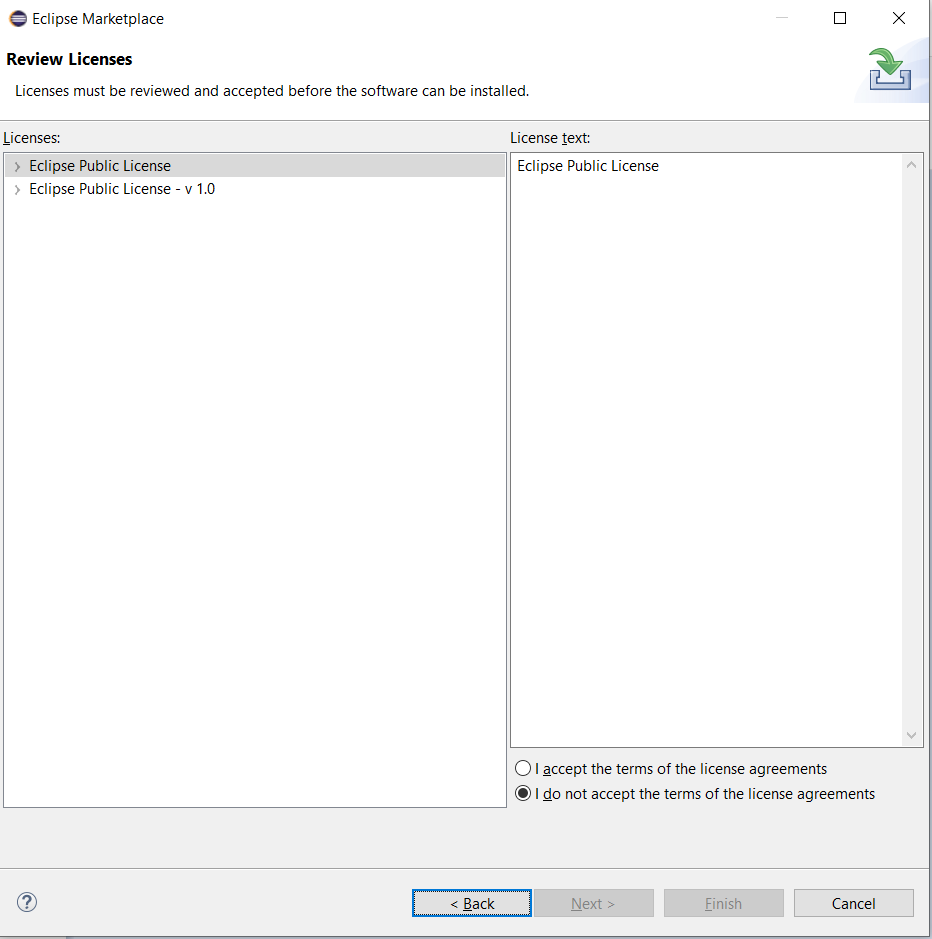
Accept the license agreement and click on Finish. This will prompt you to restart Eclipse.
Configure Pydev
Click on Window –> Preferences:
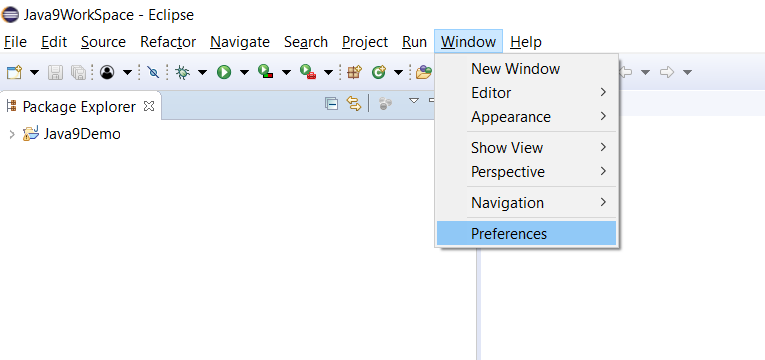
This will display the following screen:
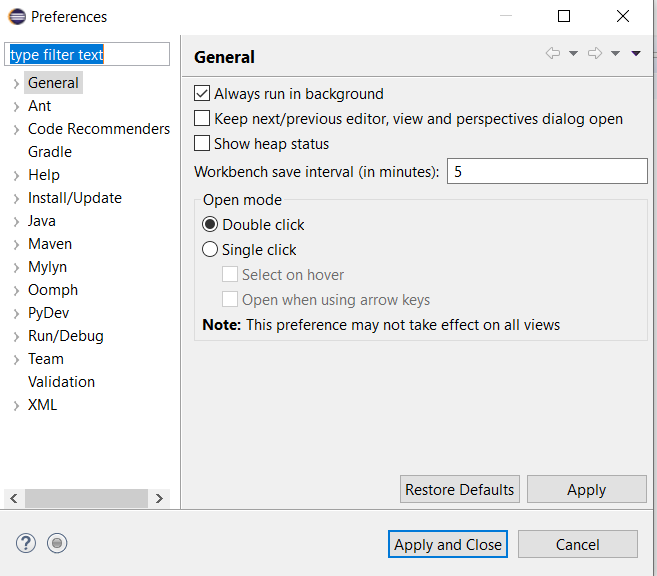
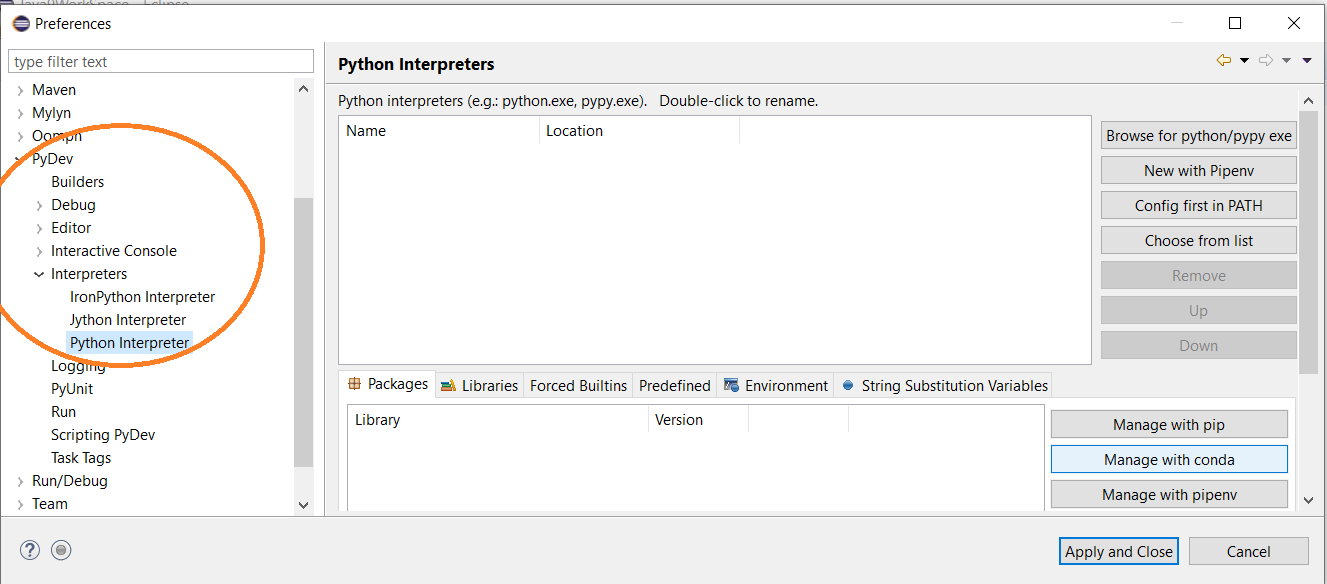
Expand Pydev –> Interpreters and click on Python interpreter:
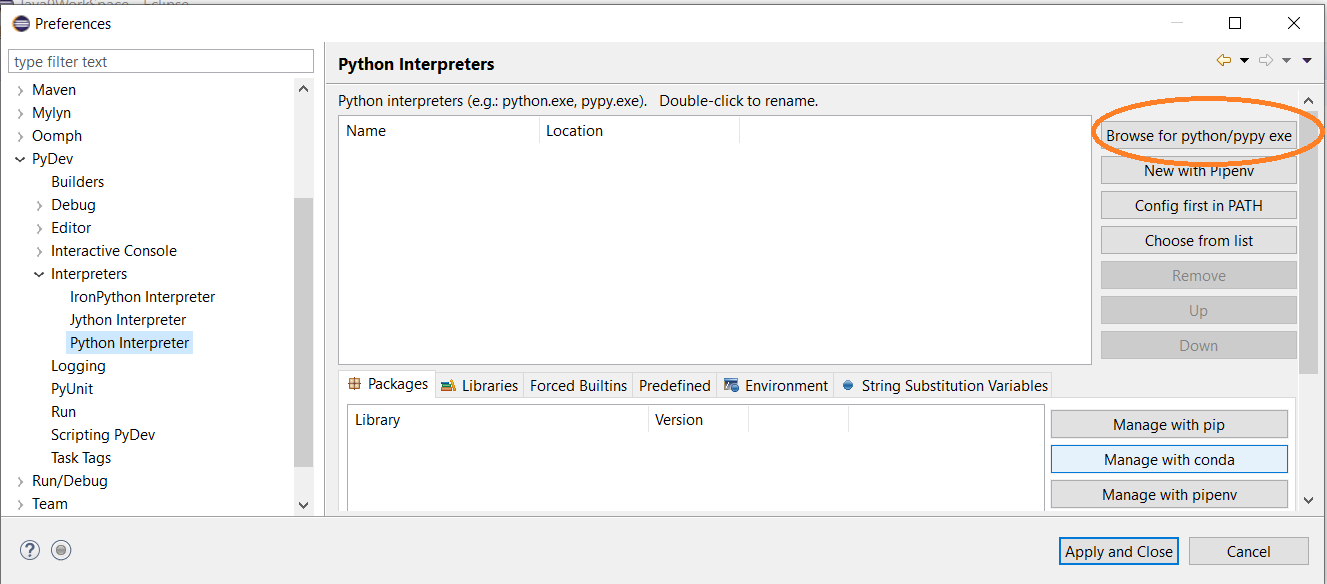
Click on Browse for python/pypye.exe:
Browse for the path of your Python exe:
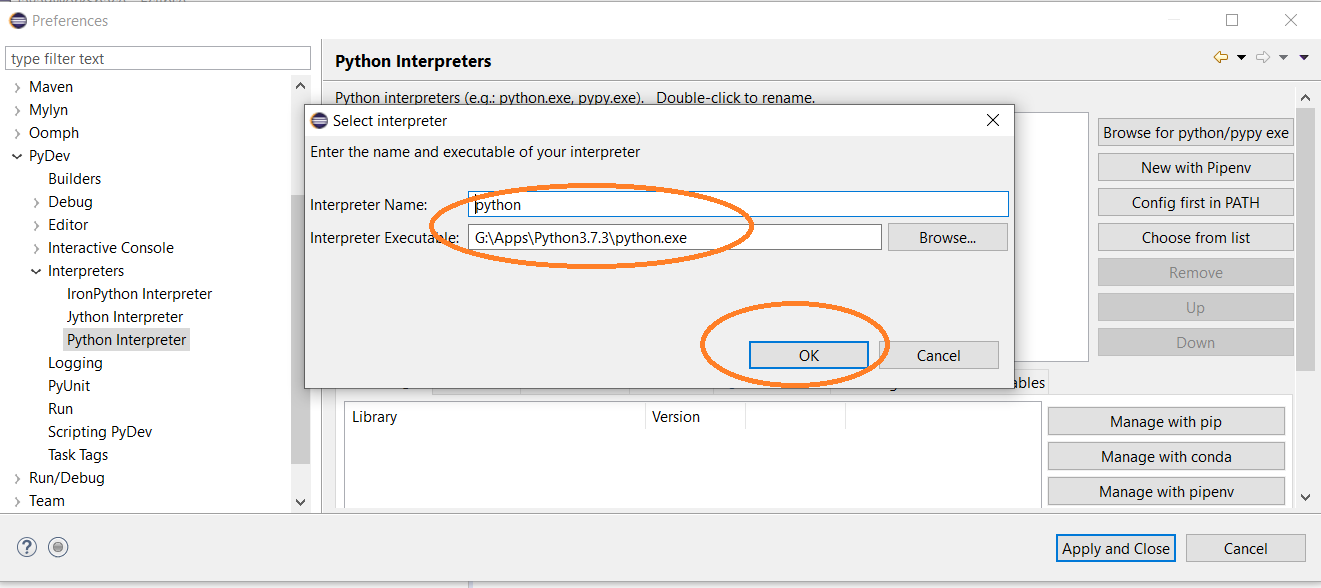
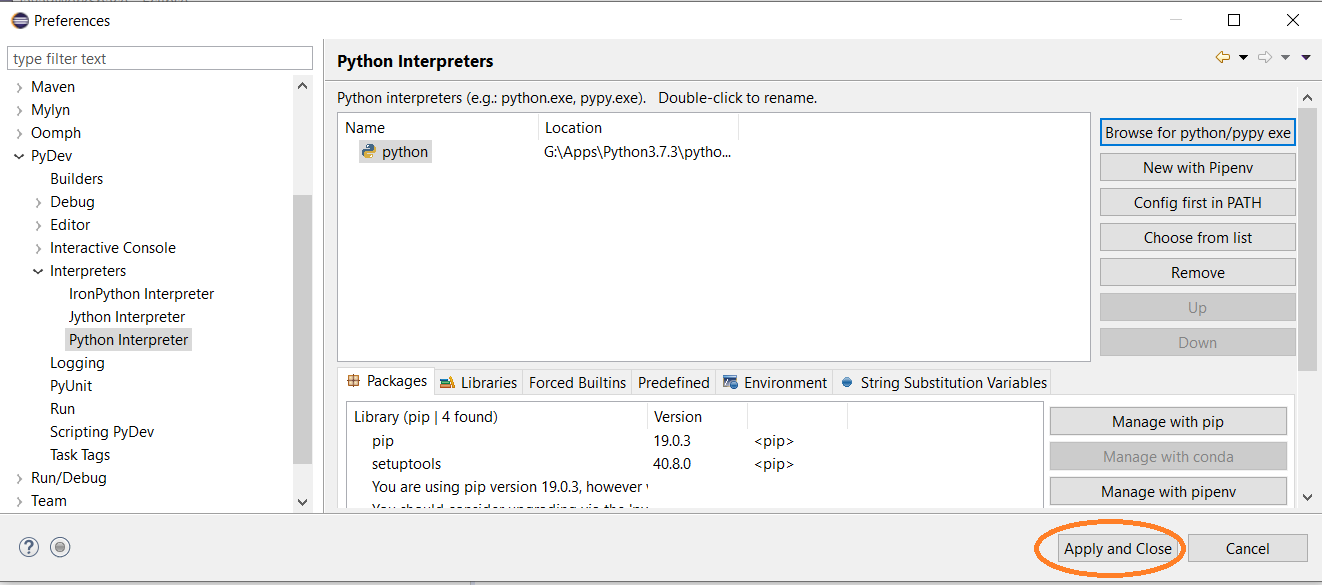
This will display the following screen. Click apply and close:
You are now ready to start creating your first python program in Eclipse!!